We didn’t add new features to our WordPress plugin, due to the fact that some features, such as RSS feeds are now available directly on your email marketing platform.
However, one of our users, Antonio Cantero, suggested that our staff could add a small improvement to this plugin.
With this update, if you have installed WooCommerce in WordPress, you can synchronize the email marketing platform only with WooCommerce customers, without importing other users.
This option is interesting to send promotions, discounts, or specific campaigns targeted only for customers, and not to all users.
Let’s see how to do this:
Step 1. Install the Mailrelay Plugin for WordPress
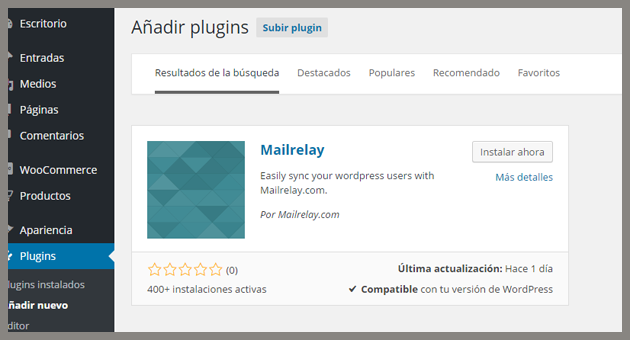
If you have not installed our WordPress plugin, just click the Plugins menu and click the button to add a new one.
Search by Mailrelay so you can easily install the plugin:
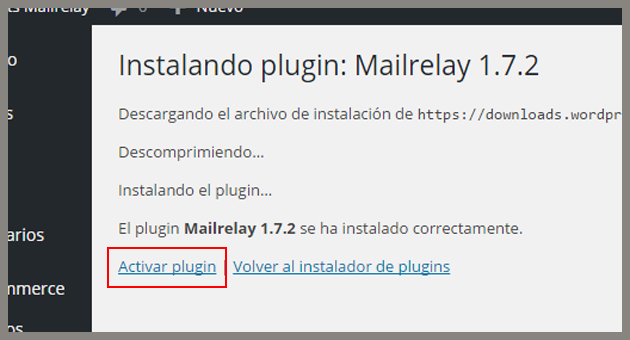
After completing the installation, make sure to click on Enable plugin:
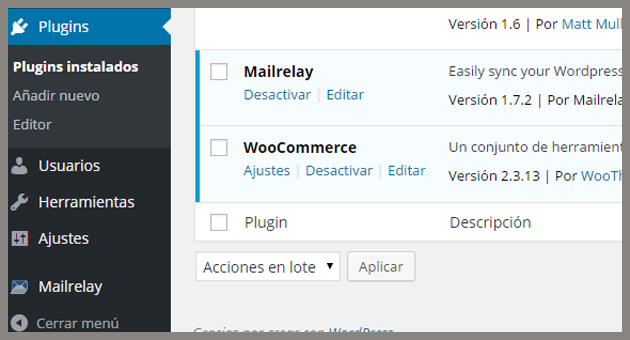
If everything was done correctly, you will have Mailrelay on the list of installed plugins:
Step 2. Setting up the Mailrelay WordPress plugin
In the sidebar, you will see a new option, “Mailrelay”.
Select the Settings option in this menu, you will see a screen similar to this:
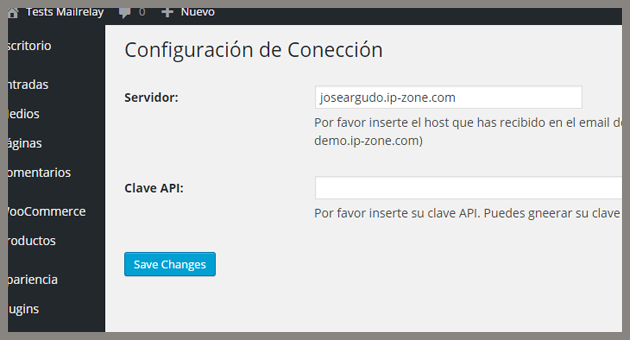
In the Server field, you must enter your ip-zone account as you can see in the image.
And for the API key field, you must enter your API key generated by our email marketing platform, you can generate it on your online panel, clicking on Settings -> API access.
After entering the login information, click Save changes.
These are the necessary settings to connect the plugin with our email marketing platform.
Step 3. synchronization of WooCommerce with our email marketing platform
We can now click on Sync in the Mailrelay menu, you will see the subscriber groups and the option to synchronize only the WooCommerce customers:
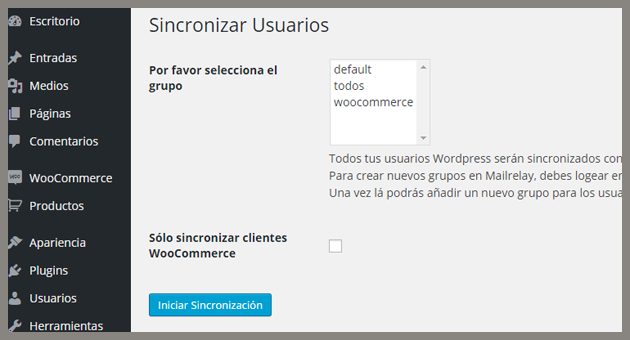
If you select this option, the system will only copy to the email marketing platform your WooCommerce users, not all your WordPress subscribers:
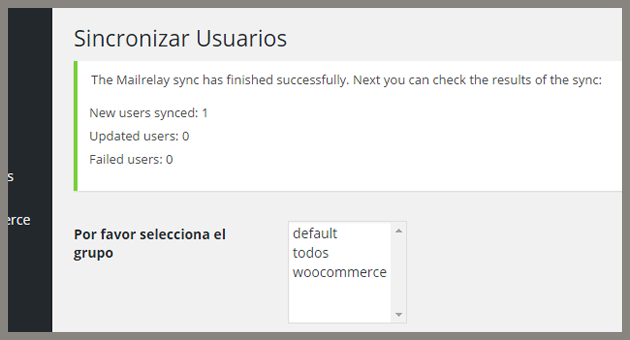
And that’s it!
Step 4. Done
With these steps, your WooCommerce customers will be added to your email marketing platform, and you can use Mailrelay to send them targeted campaigns:
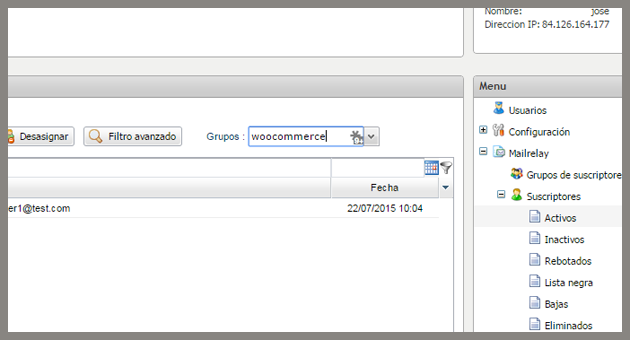
Now it is up to you to start creating your email marketing campaigns.
We hope this tutorial is useful!