In this tutorial we will explain how to import a .EML file on your Mailrelay account and create a newsletter using this file. this file may contain images in the body of the newsletter.
The first thing you need is to have a .eml file, this type of file is generated by Windows Live Mail or Outlook Express.
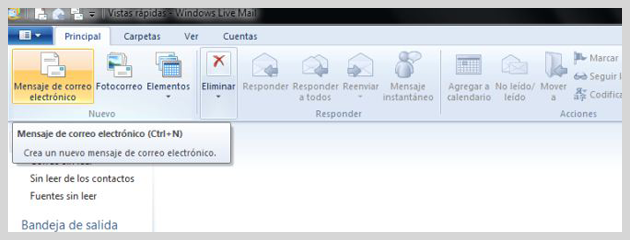
You can use one of these two programs, the first step is to click on New Message:
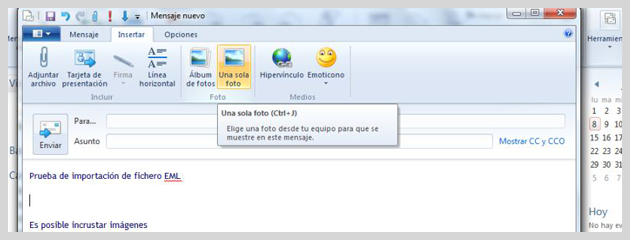
With the editor open, you can create a newsletter and if you want to insert an image, click on Insert to add images to your email.
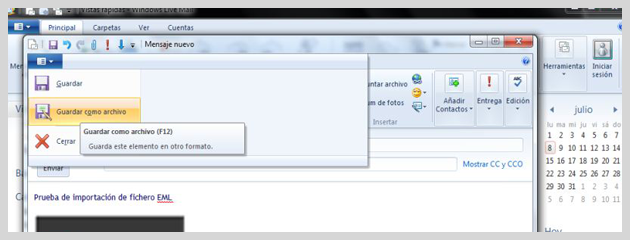
After adding the images and creating the newsletter, click “File-> Save As” to save the newsletter as .EML
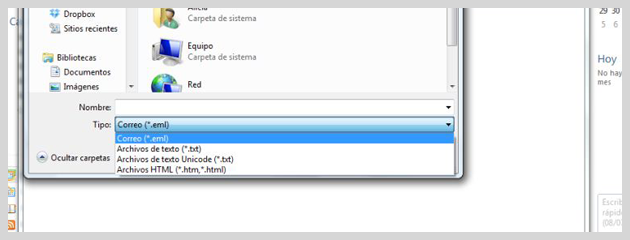
Now, you just need to select the file type from the list and choose the name of the .EML file you will importing on the Mailrelay platform.
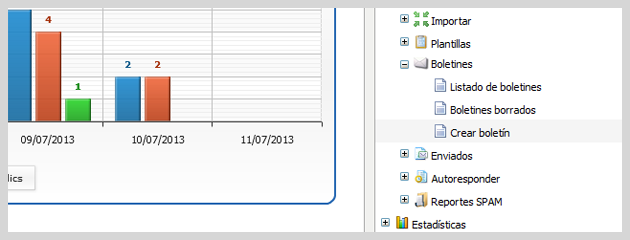
Now you will see how easy it is to import this EML file to Mailrelay. After accessing the platform, click the Newsletters menu and on Create Newsletter:
On this screen, select the parameters of the newsletter in the usual way, the subject, the groups, ETC. After selecting these options you should select the option Import Newsletter from a URL or a File:
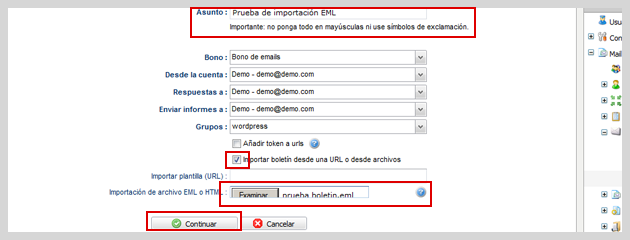
Select the file that you saved to your computer and click the Continue button. Automatically the .eml file will be imported and will be displayed in the Mailrelay Editor:
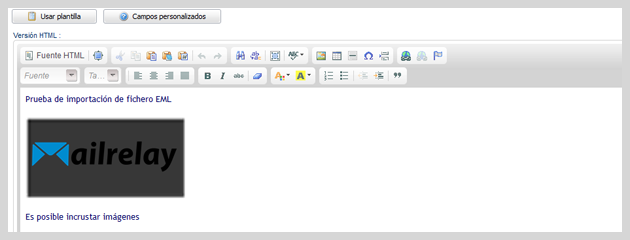
As you can see, this is a very simple process that allows you to create your newsletter using Windows Live Mail or Outlook and then import the file to your mail relay account to send it to your customers.
If you are looking for email marketing tools free, try Mailrelay, a free email marketing platform for sending your campaigns.