

Until now, when you had to import subscribers to your Mailrelay account, if you had to do it via API, the only option available was to use the addSubscriber function, although its use was simple enough, for large volumes of subscribers the process could become slightly more complex.
Therefore, our technical team has developed a new function that allows you to import large databases of subscribers.
It is call import function, you can see it in detail in the API documentation, on the option import.
Anyway, if you want to learn how to use this option, keep reading, we’ll see an example step by step. If you want to send email marketing you need to have a mailing list You can automate this process using an API, e.g. if you have an online store, a CRM, website, etc. You can export these users to a CSV file and import this file using our API.
Let’s see the parameters of this function:
– ApiKey -> your API key, a necessary parameter. To generate this key, you must access your Mailrelay account, click on Settings -> Access API -> Generate and you already have the key, that you can copy and paste.
– FileContent -> The contents of the file you want to import.
– Groups -> the IDs of the groups to which you want to import the users.
– Fields -> mapping between fields with the file and Mailrelay, by default, the first field is the email and the second is the name of the subscriber.
– Delimiter -> separator between fields, for example, a comma “,” usually found in CSV files.
– Enclosure -> field delimiter, for example, double quotes “”. Useful if the fields include separator, for example.
– Headers -> If the CSV file includes headers set to TRUE so that the first line is ignored.
– ExistingEmails -> what should happen with existing emails “skip” to ignore or “replace” to replace. By default the system uses “Replace”.
Let’s see a practical example to understand how to use this function, the first thing you will need is a CSV file with the subscribers you will import for your email marketing campaign. For example something like this:
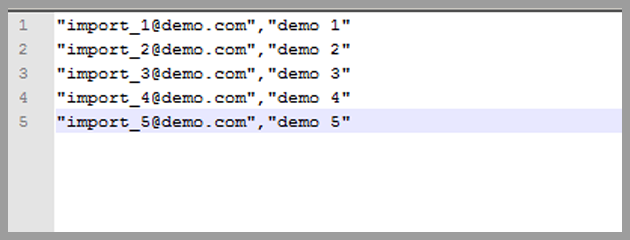
As you can see the values are enclosed in double quotes and separated by a comma. Each subscriber on its own line.
Let’s see the PHP code needed to import the file:
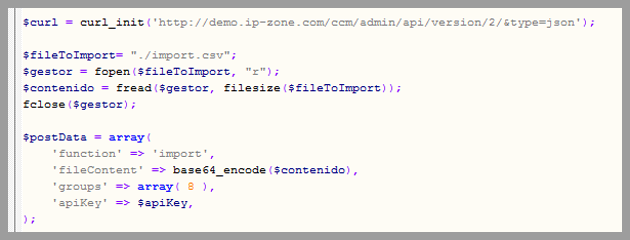
The first thing you should do is set the URL of your Mailrelay account and the API.
After that you will need to read the contents of the import file, it is important to correctly set the root so that the file can be read by the system.
Then you will need to prepare to call the function with the contents of the file included, and the group where you want to import your subscribers.
Important: You must use the function base64_encode to prepare the content.
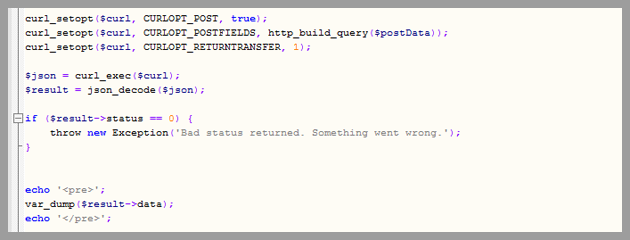
The rest of the code is the same as the other functions of the API, but you can see all the details in the description of the import function.
If everything works correctly, the code will return the ID of the imported file in the case of the Example, ID 5:

If you access your Mailrelay panel, and go to Import -> imported files, you can see the imported files:
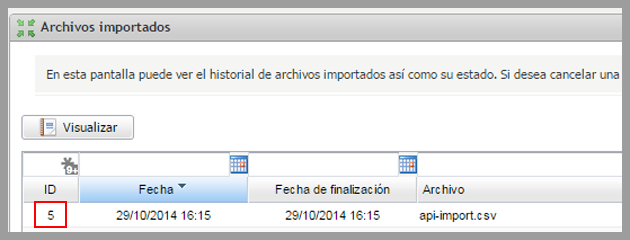
Just double click on this entry and you can view all the imported emails and the status:
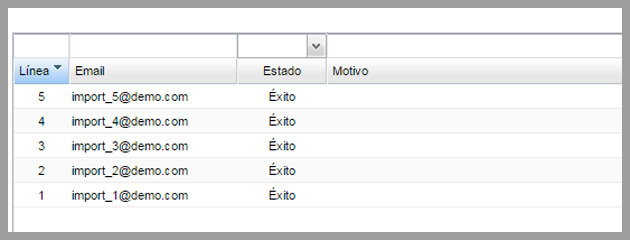
With this information, you can verify if the accounts are ready for your email marketing campaign.
You can also see these contacts on the regular list of subscribers. As you can see the import process is very easy with this new function.
If you want to see this and other complementary function, you can visit our API documentation:
– Import -> function that allows you to import files.
– getImports -> function that returns a list of the imported files
– getImportData -> function that returns a list of the imported files
We hope this information is helpful in your email marketing!
With Mailrelay, email marketing, you can create free email campaigns using your control panel or our API, therefore, create your account today!