Note from the Mailrelay team, it is highly recommended to perform the configuration explained in this article in your account
This weekend I had a problem that i will not forget easily. I was preparing my weekly newsletter and whent to check the spam score, using the spam detector that Mailrelay offers… but the score was greater than 3. And what was worse, the error the system indicated was related to Google.
At that moment I was in panic. Any error in which the word “Google” appears is something that scares you. But don’t worry, because there is a solution. And that’s what I want to talk about in this article. The problem is that in recent days, Google increased the security for their antispam filter, which can be a problem for many people who send e-mail marketing.

The first thing to do is to analyze the spam score of your newsletter. For this, after we finish editing the newsletter, we will click on the menu Newsletters> Newsletters, click “Report Spam”.
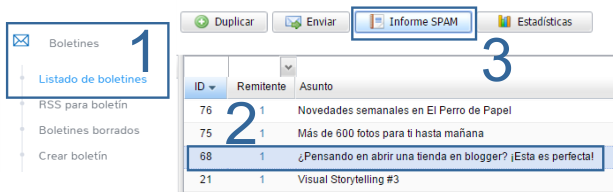
I used an old newsletter I sent before the changes we see. As you can see, it has a score of 2.90. It is always important that this score is showing as 0.
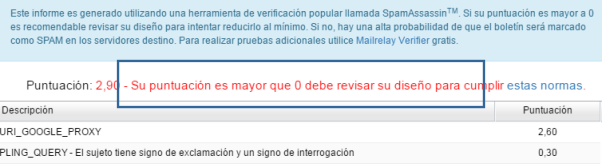
As we can see, the report indicates two errors. One is due to the exclamation symbols on the subject line. If you had any doubt on this point, know that yes: Google considers as spam subjects that are very emphatic. Thus, it is better not to use these symbols and ensure that your subscribers who use Gmail will get the campaigns without any problem.
And the mistake that scared me: URI_GOOGLE_PROXY which increased the score to 2.60
If you look at the end of the message in red, where Mailrelay shows you the score, there is a link to view the rules and access the description of each error.
The error about the exclamation symbol was clear … but this other one is more difficult.
If the link doesn’t appear, you can access it here:
Blog Mailrelay : Review your newsletter’s spam report while creating it
But what happens when the error we are searching for is not on the list …. I initially was a bit nervous and in these situations I can’t think clearly. Then, I tried to calm down, and opened my browser. The internet always has solutions for everything, you only need to know how to search for the correct answers.
In this case my search was simple: spam uri google proxy .
Great. the filter considered me as a spammer in every way … What a fantastic news. This error, could be translated into the language of mere mortals who started in email marketing as a problem that would prevent the subscribers who use Gmail from receiving the newsletter.
Terrible…. But I would not accept it. So I kept searching. There had to be a way to show Google that I was not a spammer and that my subscribers wanted to read my newsletters, as they signed up willingly on my list.
And I found it!
http://www.futurequest.net/docs/SA/
A complete list of many of those weird codes we see in the spam score.

In short, Google included me in its blacklist due to Pishing, which is the same as Identity theft! Well … well …
(not from JOSE: Don’t worry, This doesn’t mean that you have stolen the identity of any company or person, or that someone have stolen yours. This is due to the use of tracking links with domains shared by several groups of accounts, and the solution, set up a custom domain, which you can do easily).
Important warning, Google’s complaint is against the tracking domain, not against the sender domain, once corrected everything will be ok.
But it is important that you make this setting:]
I tried to send an informational newsletter, without images, which now I believe, would pass through Google servers with the new security policy.
However, there was a message in red with a warning to my gmail subscribers. Thus, the quick solution was not an effective alternative, as always happens in these situations.
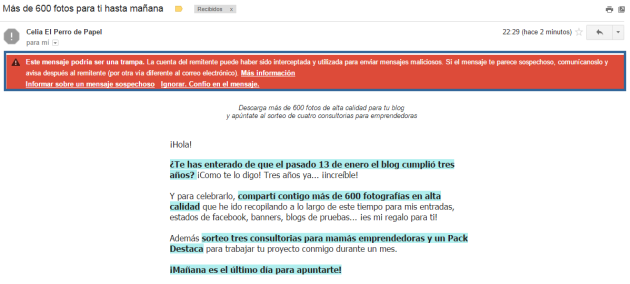
They would only have to click on the IGNORE option. I TRUST IN THIS MESSAGE. But many users will be afraid and won’t read it. Once marked as a reliable link the email would be activated and Google would understand that it is a legitimate message and the users really want to receive the newsletter.
But my God, I thought to myself when facing this problem: “What a mess.” Yes, very complicated. In some cases, the subscribers don’t know you well enough, therefore they could mark the first option, deleting the email, ignore it completely or maybe … better find a solution.
It was Jose who advised me to take a look at the post about customizing the domain. Because the domain you get when you create an account is shared with other users, thus, if another user is sending spam, even if indirectly, my account will not be compromised and it will be possible to avoid unnecessary problems.
The article to which I refer is this:
E alem disso existem outros artigos, mas se tiver dúvidas, basta entrar em contato conosco que ajudaremos em tudo o que for possível.
And moreover there are other posts, but if you have questions, simply contact us and we will help in whatever way we can.
And with this information, I started to set my custom domain to check if it would solve the problem, so that i could send my email marketing campaigns.
CREATING A SUB-DOMAIN
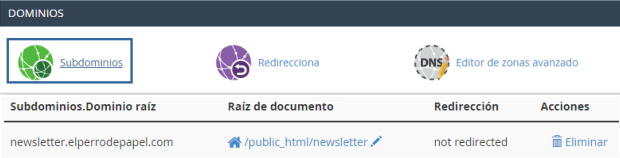
I had just purchased an email plan, since my blog is hosted on Blogger, but I needed to create a subdomain to follow the instructions of the posts I have just mentioned.
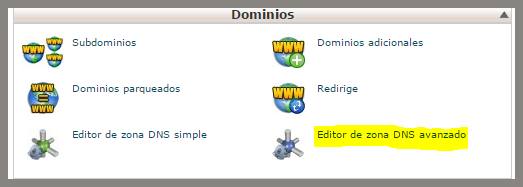
So I purchased a hosting plan. Who knows? The migration option will always be there. Once you have your domain + hosting, enter your cpanel. The interface may vary from a hosting company to another, but the steps are similar.
I created my subdomain as “Newsletter”
IMPORTANT: if you work with Mailrelay V2, you will not be able to use subdomains with an SSL certificate, as this could lead to security warning errors. If you use V3 (accounts created after March 2019), you can set up a subdomain with an SSL certificate.
Now let’s configure the DNS.
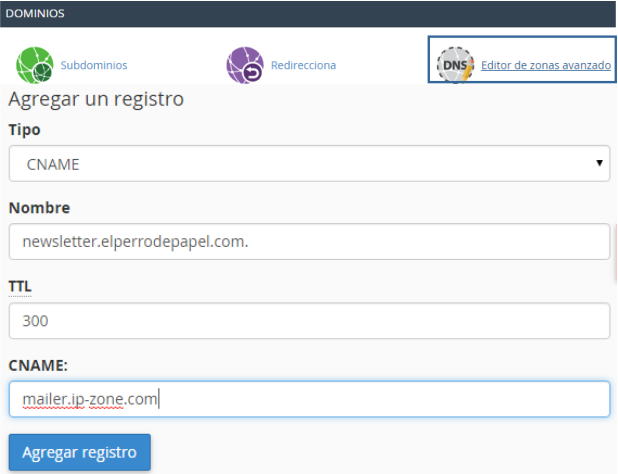
TYPE: CNAME
NAME: newsletter (it will be the address of the subdomain)
TTL: 300
CNAME: mailer.ip-zone.com
For the CNAME I followed the Mailrelay article. And we will use mailer.ip-zone.com instead of using myaccount.ip-zone.com
When we set it up on the Mailrelay panel we will see why.
Another problem I found was that when creating subdomains, the records were created automatically. This complicated the task of creating a CNAME because I was receiving a “name duplication error”.
I managed to solve this problem by removing the record that was exactly the same as the new CNAME record that I wanted to insert in my DNS. With this little trick, the system accepted the new CNAME record.
CUSTOMIZING YOUR DOMAIN IN MAILRELAY
Once this is done, I added my custom domain in Mailrelay.
Path: Settings -> CUSTOM DOMAIN
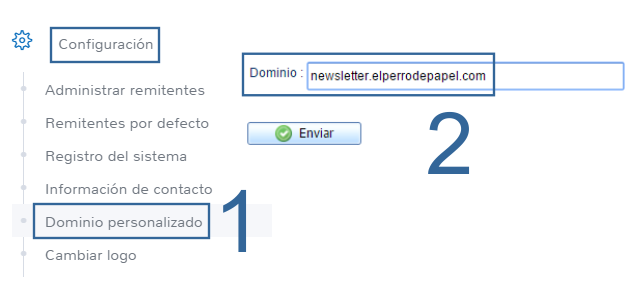
Enter the domain you created (in my case: newsletter.elperrodepapel.com) and click on Verify. Here you will understand why I used Mailer, because this is the name that Mailrelay gives us to configure the DNS.
As we added this setting before, just click check.
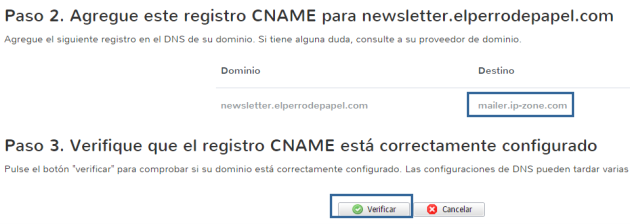
That is it! The custom domain is active. And besides, you can delete it at any time if you need to modify it in the future.

It was not so hard, was it? Perhaps the trickiest part was setting up the DNS, as in some situations you may need to delete other records.
We can check the spam score
DNS settings can take a while to update, we have to have a little patience, okay? But if you followed the steps slowly and carefully, it will work.
Now let’s see if it is working effectively and the spam score is showing 0.
Click on Newsletters> Newsletters And click on spam report.

Perfect! It is showing zero.
You can analyze other newsletters and other notifications may appear, but not the Proxy Google.
Let’s check to make sure that the URL is correct. To do this, click on Edit in any of the newsletters, slightly below click on the “Send test newsletter”.
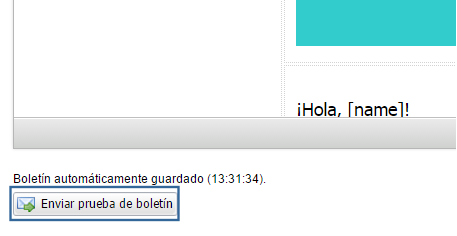
Enter the email address in the box and click Send. The newsletter will be sent in a short time.
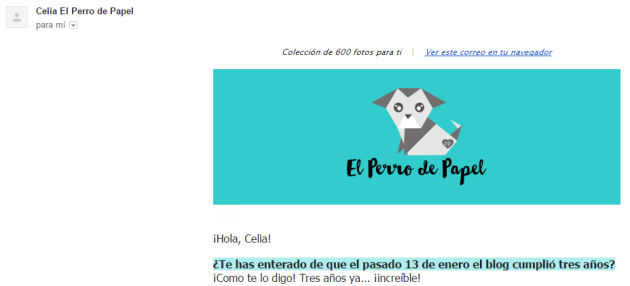
No warning this time! Good . Let’s check the address to see if our custom subdomain is displayed.
If you have a Gmail account, click on the inverted triangle, a pop-up with various options will open:. Choose Show original and you will see the HTML version of the email.
Now press the keys (Ctrl) + F, to open the search form of your browser. Enter the subdomain name that you created (in my case newsletter) and press ENTER.
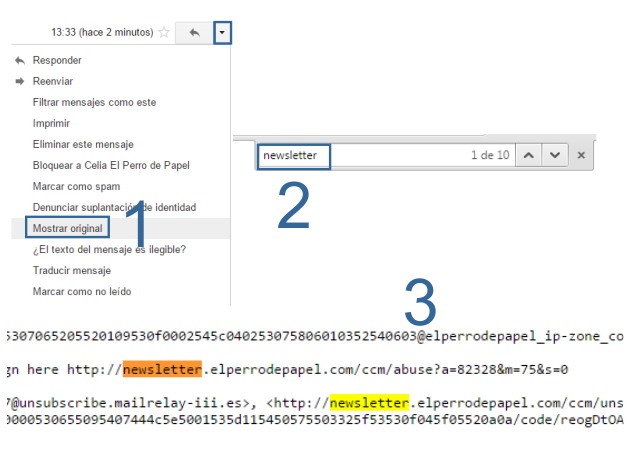
And that’s all! The custom subdomain is correct, it has been set up properly!
It is important to use a custom domain to improve the online reputation and avoid unnecessary problems, and you will not be affected by the bad practices of third parties.
If you read this whole post (congratulations! Because it’s very long …) what are you waiting for? Add this setting today.
Did you understand the explanation? I hope so. If you need help, just contact us.