Today we will see how to create and edit a complete newsletter, with examples of HTML codes and their usage.
What will we see in this post?
You will learn some basics in HTML and will have instructions for creating a newsletter using the Mailrelay editor.
How to create a table
This table will be used to center the message content, with these settings:
- 100% width.
- One line
- One column
- Borderless
That setting would look more or less like the one in the image.
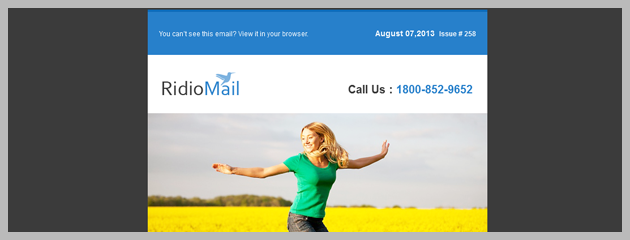
How to create an inner table
Next, let ‘we will create an inner table, which will be inside the other one. We can do that in two steps:
- Again it will be a one-column table
- and a line, but there are two differences
- The width is 65%
- Centralized alignment
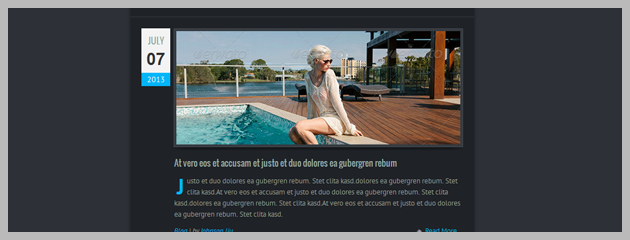
In the example, perhaps the width was not the best, and maybe 75% or 85% would look better.
It’s a matter of testing until you see what works best for you.
Now, without leaving this screen, we will click on the Advanced tab.
Here we will modify the Styles box:
- max-width: 500px;
- This sets a maximum width, so that although the email client has more width, the newsletter will not exceed this width.
- padding: 5px;
- With padding what we do is leave a space between the table border and the inside so that if the table fits the border of the device, we will get some white space.
It would look something like that:
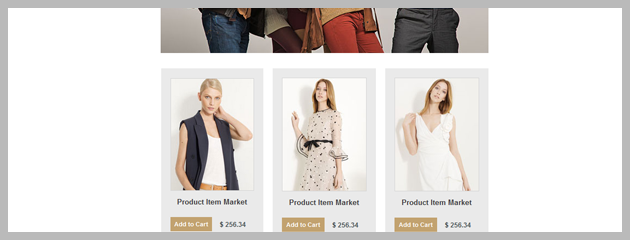
And the next step is to add an image, this step is simple, but it’s also important to set the width:
- Width: 100%
- Height: empty
It is important to leave the field height empty, because this way the system will adjust the proportions of the image without problems, adjusting the width to the available width.
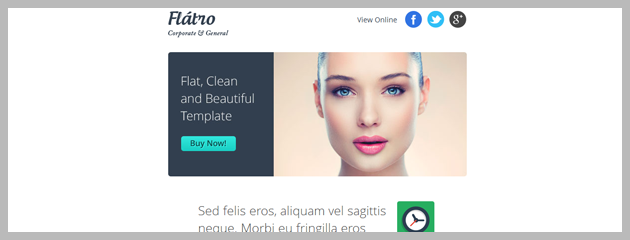
In the next step, we will add a button for a call to action.
It’s very easy, just select the text and click on the link button.
Then select the Advanced tab and style:
- background-color: # 18adb3;
- This will set the background color
- border: 2px solid # 18adb3;
- Here we indicate the width and color of the border
- color: white;
- The color of the text
- display: block; margin: 0 auto;
- Two values for the button to be centered
- padding: 5px;
- A margin between the border and the text
- width: 50%;
- Width of the button, so it doesn’t use the entire width of the template.
- text-decoration: none;
- To remove the underline from the link
With these values, you could create a visually appealing button.
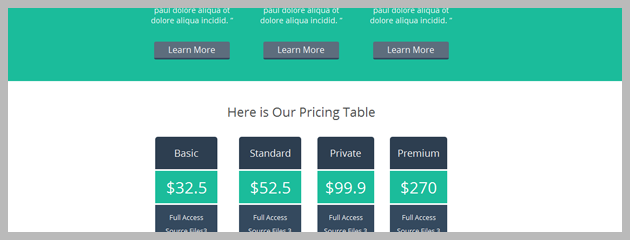
Adding a table with more columns
If for example you want to add a table with more columns, you could do it with the following settings:
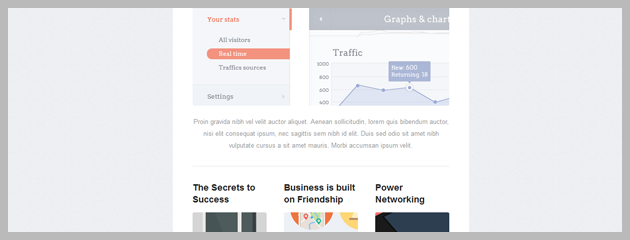
Setting a width of 100% and 5 columns.
Here we recommend that if you add images, you should set a width of 100%, as we saw before when learning how to insert the images.
Finally.
Unsubscribe link
When creating a newsletter, it is essential to include an unsubscribe link, so that users who wish to do so can request removal from your database easily and automatically.
To do that, you only have to create a link with these values:
- Protocol: other
- URL: [unsubscribe_url_click]
And from that, Mailrelay will generate and send an unsubscribe link to each subscriber.
If you follow the instructions in this tutorial correctly, you should have a newsletter very similar to that:
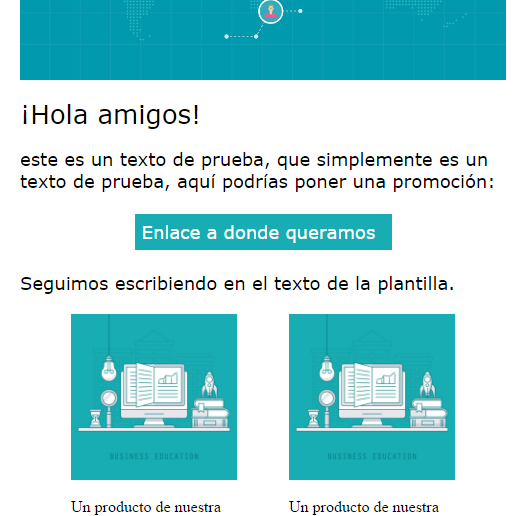
For a simple newsletter, that’s enough, don’t you think so?
What if the newsletter is viewed on a mobile device?
It would look like that:
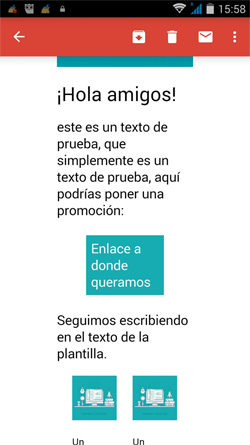
As explained before, perhaps a width of more than 65% would be more advisable, because in this case it could be very narrow.
But in general, it has been adapted correctly.
Because it includes all the relevant basics in a newsletter:
Header with an image to show the brand
- The essential text
- A button and call to action for the subscriber to take the desired action
- More images if needed
- Some links and secundary calls to action
- Unsubscribe link
We could insert other items, but they are not necessary.
Usually, it is recommended to create a newsletter as simple as possible, because the objective of the campaign is that the user performs some action, so it would be better to not use a distracting design.
In the vast majority of cases, the goal of the campaign will be to convince the user to click on the link to access an website or blog.
It is not necessary or recommendable to overload the newsletter design.
So the layout will not get in the way!
I hope this tutorial how to edit a newsletter will be useful.